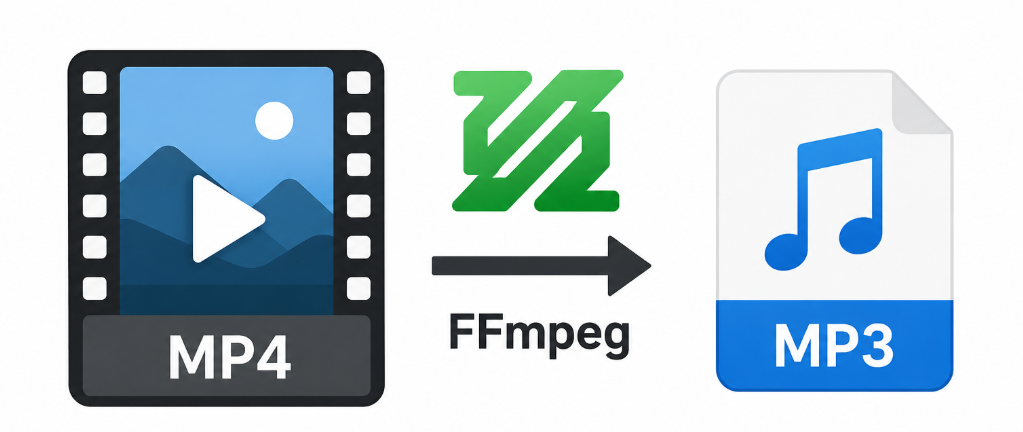
Wie extrahiert man mit FFmpeg Audio aus Videos?

Es gibt viele Situationen, in denen man die Audiospur aus einer Videodatei extrahieren möchte. Vielleicht möchten Sie den Soundtrack eines Films speichern, eine aufgezeichnete Vorlesung in MP3 konvertieren, um sie besser anhören zu können, einen Podcast aus einem Webinar erstellen oder die Hintergrundmusik Ihrer eigenen Videos erhalten. Anstatt auf Online-Konverter zurückzugreifen, die möglicherweise die Qualität oder den Datenschutz beeinträchtigen, nutzen viele Anwender stattdessen … FFmpeg , eines der leistungsstärksten verfügbaren Open-Source-Multimedia-Tools.
FFmpeg ist ein Kommandozeilenprogramm, das nahezu alle Aspekte der Video- und Audioverarbeitung abdeckt. Es unterstützt Hunderte von Formaten, ermöglicht verlustfreie Audioextraktion und bietet umfangreiche Anpassungsmöglichkeiten über Kommandozeilenparameter. Obwohl die Einarbeitung etwas komplexer ist als bei grafischer Software, ist es nach wie vor bei Entwicklern, Content-Erstellern und fortgeschrittenen Nutzern sehr beliebt.
In diesem Leitfaden erfahren Sie, wie Sie mit FFmpeg Audio aus Videodateien extrahieren und welche Vor- und Nachteile das Programm bietet.
1. Wie extrahiert man mit FFmpeg Audio aus Videos?
Bevor Sie Audio extrahieren können, müssen Sie zuerst FFmpeg auf Ihrem Computer installieren.
Schritt 1: FFmpeg installieren
Besuchen Sie die offizielle FFmpeg-Website und laden Sie die passende Version für Ihr Betriebssystem herunter.
Überprüfen Sie nach der Installation, ob FFmpeg Ihrem Systempfad hinzugefügt wurde, indem Sie das Terminal (macOS/Linux) oder die Eingabeaufforderung (Windows) öffnen und Folgendes eingeben:
fmpeg -version
Wenn FFmpeg korrekt installiert ist, werden Versionsinformationen angezeigt.
Methode 1: Audio extrahieren ohne erneute Kodierung (verlustfrei)
Wenn Ihr Video bereits Audio im gewünschten Format enthält, können Sie den Audiostream direkt kopieren, ohne ihn neu zu kodieren.
Zum Beispiel:
ffmpeg -i input.mp4 -vn -acodec copy output.aac
Hier die Bedeutung der einzelnen Parameter:
-i input.mp4spezifiziert das Eingangsvideo.-vnEntfernt den Videostream.-acodec copyKopiert das Originalaudio ohne Qualitätsverlust.output.aacist die extrahierte Audiodatei.
Diese Methode ist extrem schnell, weil FFmpeg einfach den Audiostream kopiert.
Methode 2: Video-Audio in MP3 konvertieren
Wenn Sie eine MP3-Datei wünschen, kann FFmpeg den Ton während der Extraktion kodieren.
ffmpeg -i input.mp4 -vn -q:a 0 output.mp3
Erläuterung:
-q:a 0nutzt die höchste VBR-MP3-Qualität.output.mp3legt das Ausgabeformat fest.
Dies ist einer der am häufigsten verwendeten FFmpeg-Befehle.
Methode 3: Audio als WAV extrahieren
Für professionelle Bearbeitungs- oder Archivierungszwecke bevorzugen viele Nutzer unkomprimiertes WAV-Audio.
ffmpeg -i input.mp4 -vn output.wav
Die resultierende Datei ist zwar größer, bewahrt aber jedes Audiodetail.
Methode 4: Konvertierung in FLAC
FLAC bietet verlustfreie Komprimierung mit kleineren Dateigrößen als WAV.
ffmpeg -i input.mp4 -vn output.flacFLAC eignet sich ideal für Musiksammlungen und hochwertige Backups.
Methode 5: Audio-Bitrate festlegen
Wenn Sie kleinere Dateien benötigen, geben Sie eine Bitrate an.
Beispiel:
ffmpeg -i input.mp4 -vn -b:a 192k output.mp3Gängige Bitraten sind:
- 128 kbps
- 192 kbps
- 256 kbps
- 320 kbps
Höhere Bitraten führen im Allgemeinen zu einer besseren Klangqualität.
Methode 6: Audio während der Extraktion kürzen
Extrahieren Sie nur einen Teil des Audios.
Beispiel:
ffmpeg -ss 00:01:00 -to 00:03:30 -i input.mp4 -vn output.mp3Dies extrahiert Audio aus:
- Start: 1 Minute
- Ende: 3 Minuten 30 Sekunden
Diese Funktion ist nützlich, um Markierungen zu speichern oder Klingeltöne zu erstellen.
Methode 7: Stapelverarbeitung von Audio
Wenn Sie viele Videos haben, kann FFmpeg diese in Stapeln verarbeiten.
Windows :
for %i in (*.mp4) do ffmpeg -i "%i" -vn "%~ni.mp3"Linux/macOS:
for f in *.mp4; do
ffmpeg -i "$f" -vn "${f%.mp4}.mp3"
done
Dadurch wird automatisch die Audiospur aus jeder MP4-Datei im aktuellen Ordner extrahiert.
2. Vor- und Nachteile der Verwendung von FFmpeg
Vorteile:
- Kostenlos und Open Source ohne Lizenzgebühren.
- Unterstützt zahlreiche Formate für Audio und Video.
- Schnell und effizient insbesondere für die verlustfreie Extraktion.
- Hochwertige Ausgabe mit umfangreichen Kodierungsoptionen.
- Hervorragend für die Automatisierung geeignet durch Skripte und Stapelverarbeitung.
Nachteile:
- Nur Befehlszeile wodurch es weniger anfängerfreundlich wird.
- Steile Lernkurve aufgrund seiner vielen Befehle und Optionen.
- Keine integrierte grafische Benutzeroberfläche für eine einfache Bedienung.
- Eingeschränkte Unterstützung für das Herunterladen von Online-Videos ohne zusätzliche Werkzeuge.
3. Probieren Sie den ultimativen Video-Downloader und -Konverter – Meget
FFmpeg eignet sich zwar hervorragend zur Verarbeitung lokaler Mediendateien, bietet aber keine einfache Möglichkeit, Videos von Online-Plattformen herunterzuladen, bevor der Ton extrahiert wird. Hier erweist sich Meget als ausgezeichnetes Zusatztool.
Sehr ist ein All-in-One-Video-Downloader und -Konverter, der speziell für Nutzer entwickelt wurde, die Videos und Audiodateien von beliebten Websites speichern möchten, ohne komplizierte Kommandozeilenbefehle ausführen zu müssen. Dank seiner intuitiven Benutzeroberfläche ist das Herunterladen und Konvertieren von Medien auch für Anfänger einfach, während gleichzeitig fortgeschrittene Funktionen für erfahrene Nutzer zur Verfügung stehen.
Hauptmerkmale von Much:
- Laden Sie Videos und Audiodateien von Tausenden von Websites herunter.
- Extrahieren Sie Audio direkt in Formate wie MP3, M4A, AAC und WAV.
- Laden Sie ganze Wiedergabelisten, Kanäle oder Alben auf einmal herunter.
- Speichern Sie Videos in Auflösungen bis zu 8K (sofern verfügbar).
- Heruntergeladene Medien in verschiedene Formate konvertieren.
So extrahieren Sie Audio aus Videos mit Meget:
- Installieren und starten Sie Meget auf Ihrem Computer und wählen Sie dann auf der Hauptoberfläche ein Audioausgabeformat wie MP3 oder M4A aus.
- Kopieren Sie die URLs der Online-Videos, die Sie herunterladen möchten, und fügen Sie die Links in Meget ein.
- Meget ruft die Videos automatisch ab und extrahiert den Ton.
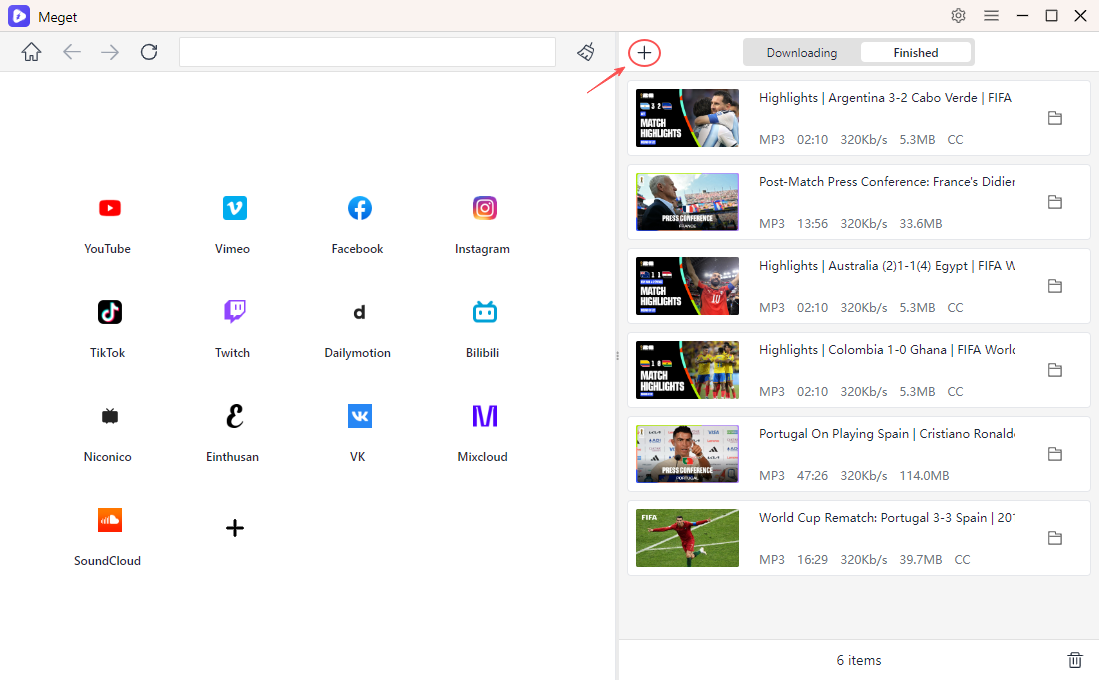
- Wenn der Vorgang abgeschlossen ist, finden Sie die extrahierten Audiodateien auf der Registerkarte „Fertig“.
4. Fazit
FFmpeg zählt nach wie vor zu den leistungsfähigsten Multimedia-Tools zum Extrahieren von Audio aus Videodateien. Ob Sie Audio ohne Qualitätsverlust kopieren, in MP3 konvertieren, unkomprimierte WAV-Dateien speichern, FLAC-Archive erstellen oder die Stapelverarbeitung automatisieren möchten – FFmpeg bietet unübertroffene Flexibilität und professionelle Leistung. Allerdings kann die Kommandozeilenschnittstelle und der damit verbundene Lernaufwand den Einstieg für Gelegenheitsnutzer erschweren, insbesondere bei der Arbeit mit Online-Medien.
Wenn Sie regelmäßig Videos von Webseiten herunterladen und schnell in hochwertige Audiodateien umwandeln, ist Meget die optimale Lösung. Dank intuitiver Benutzeroberfläche, umfassender Webseitenkompatibilität, der Möglichkeit zum Massen-Download und integrierter Audiokonvertierungsfunktionen vereinfacht Meget den Prozess erheblich und liefert gleichzeitig hervorragende Ergebnisse. Für alle, die nach der schnellsten und einfachsten Methode suchen, Audio aus Online-Videos herunterzuladen und zu extrahieren, ist Meget die ideale Wahl. Sehr ist eine sehr empfehlenswerte Alternative, die FFmpeg in vielen alltäglichen Szenarien ergänzt oder sogar ersetzt.
- yt-dlp-Download – Nur Audio – Schlechteste Audioqualität? Beheben Sie das Problem mit diesen Lösungen
- Funktionieren DRM-Video-Downloader-Erweiterungen wirklich? Probieren Sie diese alternativen Tools aus.
- Wie behebt man den Fehlercode 152-18 beim 4K-Video-Downloader?
- Die besten Alternativen zu CocoCut für Video-Downloader, die Sie ausprobieren sollten
- Wie lade ich etwas von Movies2Watch herunter?
- GenYouTube im Überblick: Ein vollständiger Leitfaden zu Funktionen und Nutzung
- yt-dlp-Download – Nur Audio – Schlechteste Audioqualität? Beheben Sie das Problem mit diesen Lösungen
- Funktionieren DRM-Video-Downloader-Erweiterungen wirklich? Probieren Sie diese alternativen Tools aus.
- Wie behebt man den Fehlercode 152-18 beim 4K-Video-Downloader?
- Die besten Alternativen zu CocoCut für Video-Downloader, die Sie ausprobieren sollten
- Wie lade ich etwas von Movies2Watch herunter?
- GenYouTube im Überblick: Ein vollständiger Leitfaden zu Funktionen und Nutzung
- Tuberipper-Test: Lohnt sich die Nutzung?